

This tutorial walks you through upgrading an existing OpenCart 3.x store to OpenCart 3.0.5.1, step by step. It applies if you are running any OpenCart 3.x version lower than 3.0.5.1.
Why Upgrade to OpenCart 3.0.5.1?
Keeping your store up to date is good practice. Updates bring bug fixes, security patches, and better compatibility with extensions and themes.
The main reason to upgrade to the 3.0.5.x line is compatibility with modern PHP versions (PHP 8.x). Older 3.0.3.x releases run into errors on newer PHP, and the OpenCart community has worked hard to keep this branch alive. OpenCart 3.x is still one of the most widely used branches, with a large ecosystem of themes and extensions.
Important: Some modules have been removed from the core in newer 3.0.x releases (for example UPS Shipping and Squareup). If your store depends on them, check for replacements before upgrading.
Prerequisites
Before upgrading, make sure you have done the following.
1. Back up your database and files
- Always have a backup. At a minimum, back up the database. Backing up your store files is strongly recommended too.
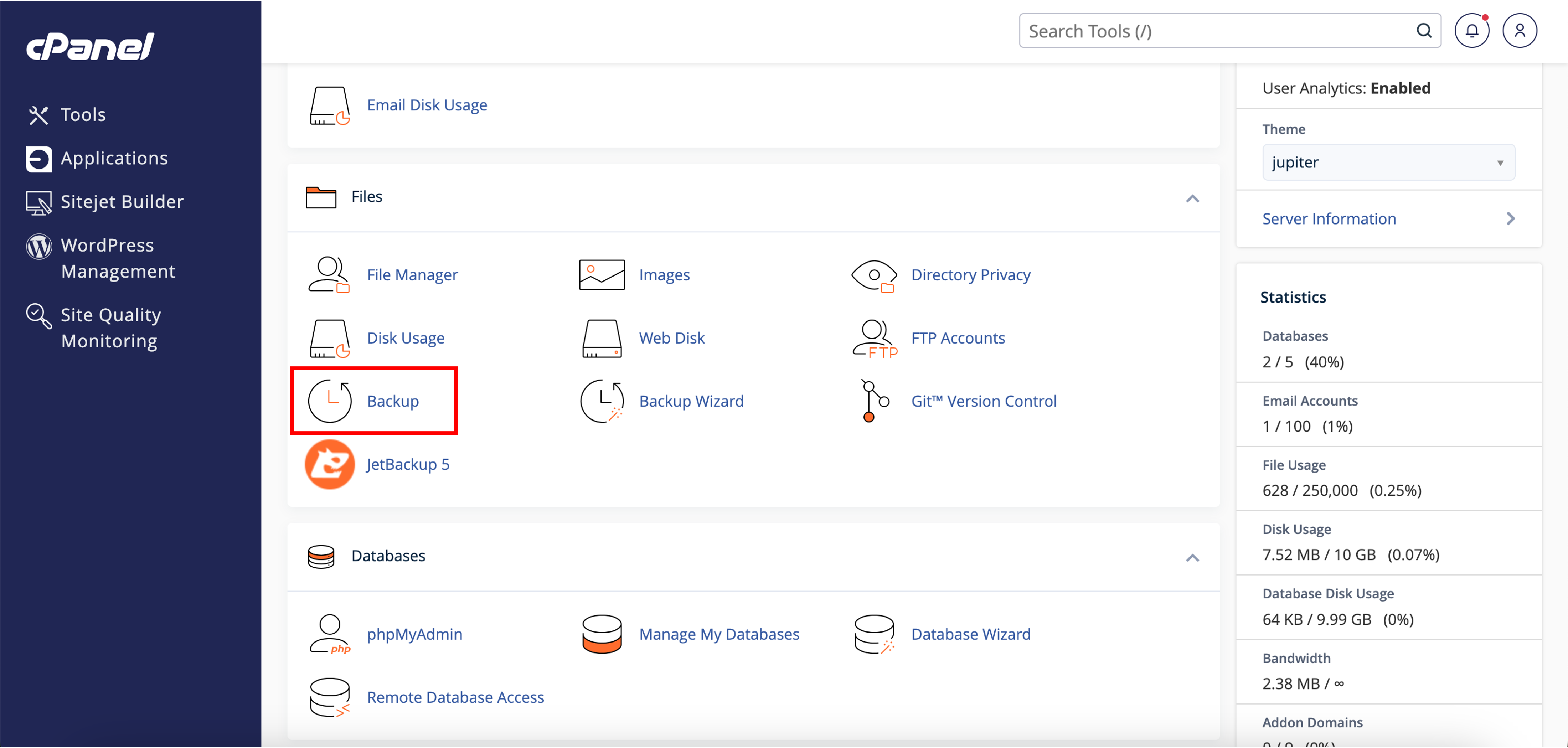
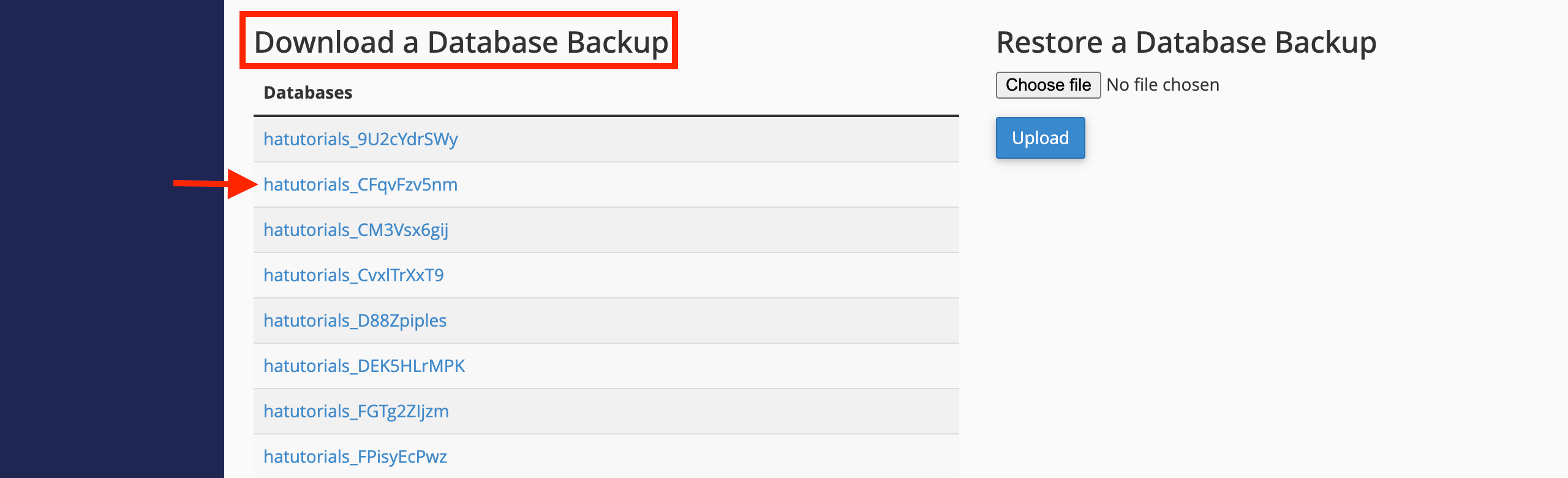
- Log in to cPanel (or your hosting panel) and open the Backup page. Download a full backup, or download the database backup and the
public_htmlfiles separately.
2. Check compatibility
- Confirm that your theme, extensions, and modifications support OpenCart 3.0.5.x. Incompatible add-ons can break your store after the upgrade.
- If possible, test the upgrade first on a staging copy of your site.
3. Enable maintenance mode (optional but recommended)
- In the admin dashboard, go to System > Settings > Server and set Maintenance Mode to Yes, so customers don’t place orders mid-upgrade.
Upgrade Steps
Step 1: Download OpenCart 3.0.5.1
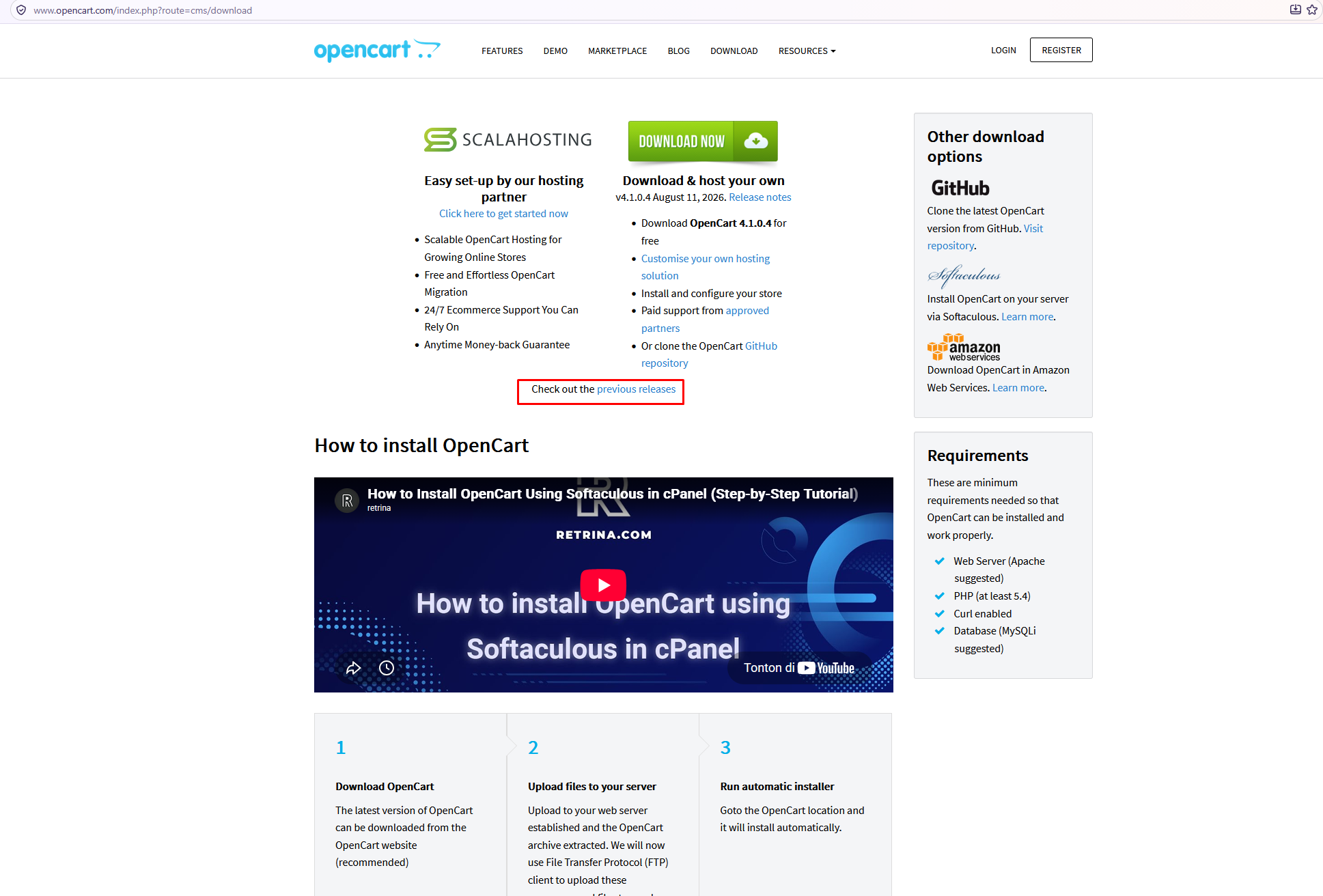
- Go to opencart.com and open the Downloads page.
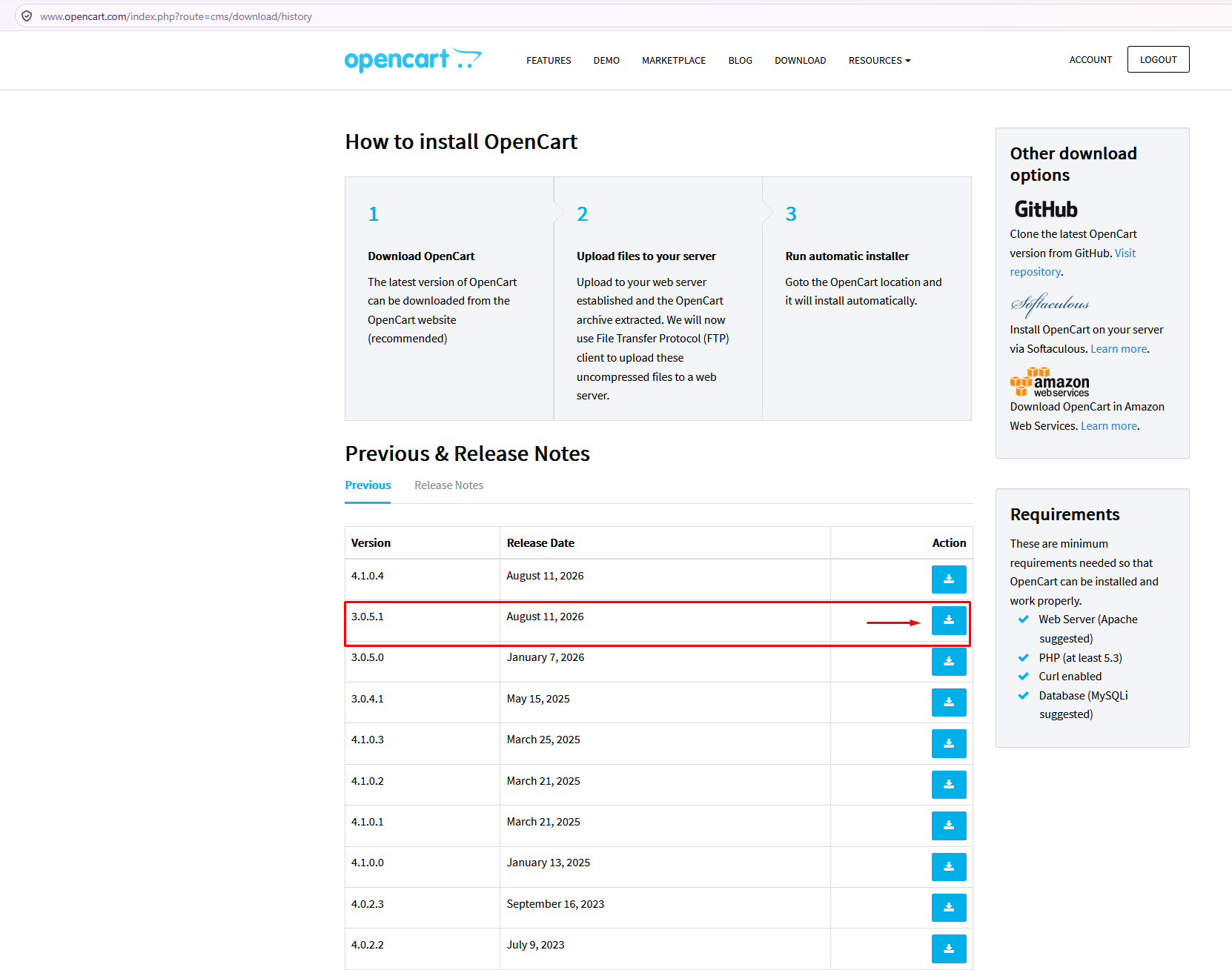
- Open the release notes or archive list, find OpenCart 3.0.5.1, and download it.
Step 2: Upload and extract the archive
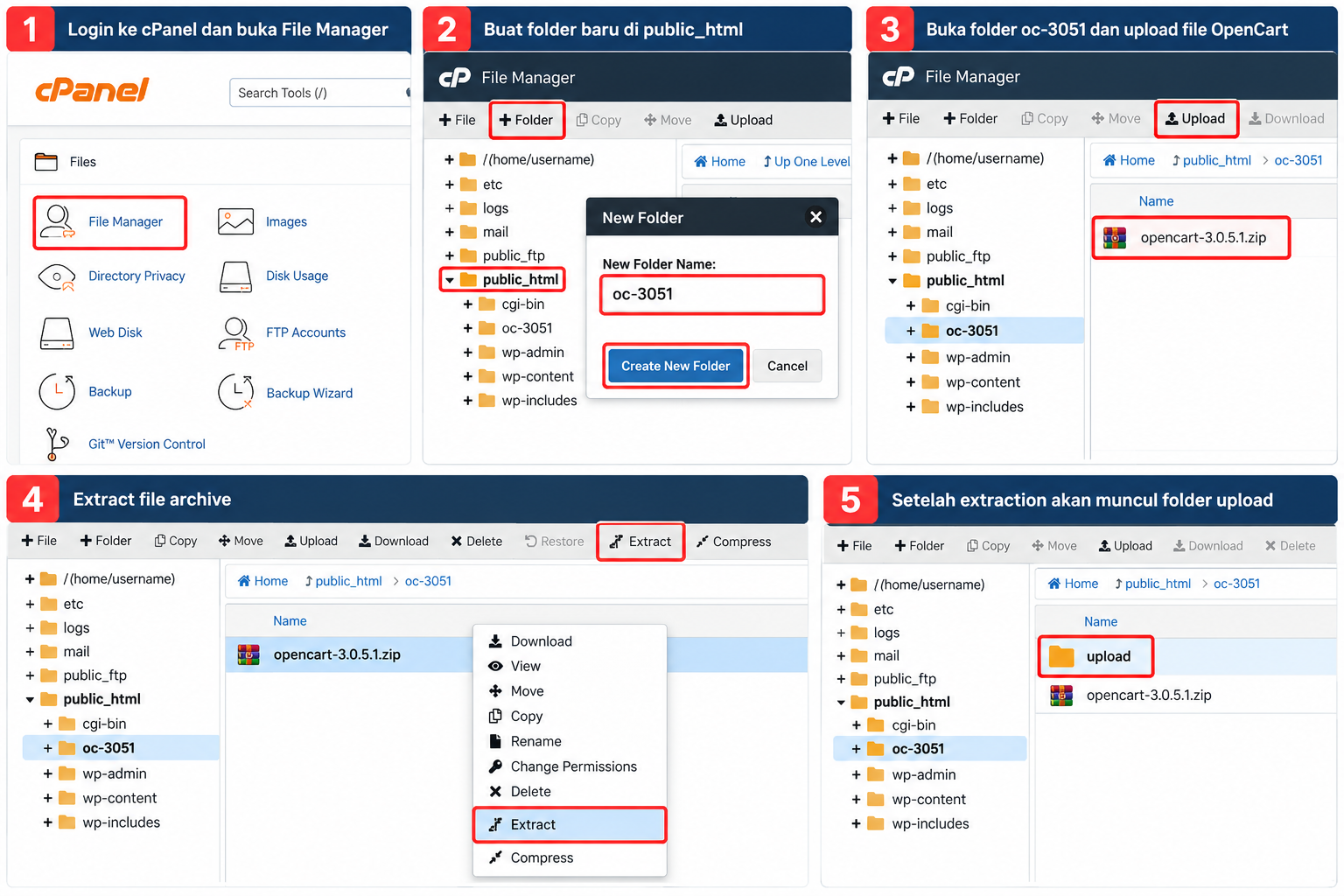
- Log in to cPanel and open File Manager.
- Inside
public_html, create a separate folder for the upgrade files, for exampleoc-3051. - Open that folder, upload the OpenCart 3.0.5.1 archive, then right-click it and choose Extract.
- After extraction you will see an
uploadfolder.
Step 3: Copy the new files over the old ones
- Open the
uploadfolder and select all files and folders inside it. - Click Copy, and set the destination to
public_html(assuming your store is the main website). - Click Copy Files. This overwrites the existing OpenCart core files.
Note: The
uploadfolder containsconfig-dist.phpandadmin/config-dist.php, notconfig.php. So your existing configuration files are not overwritten. Do not rename the-distfiles.
Step 4: Run the database upgrade
- Open
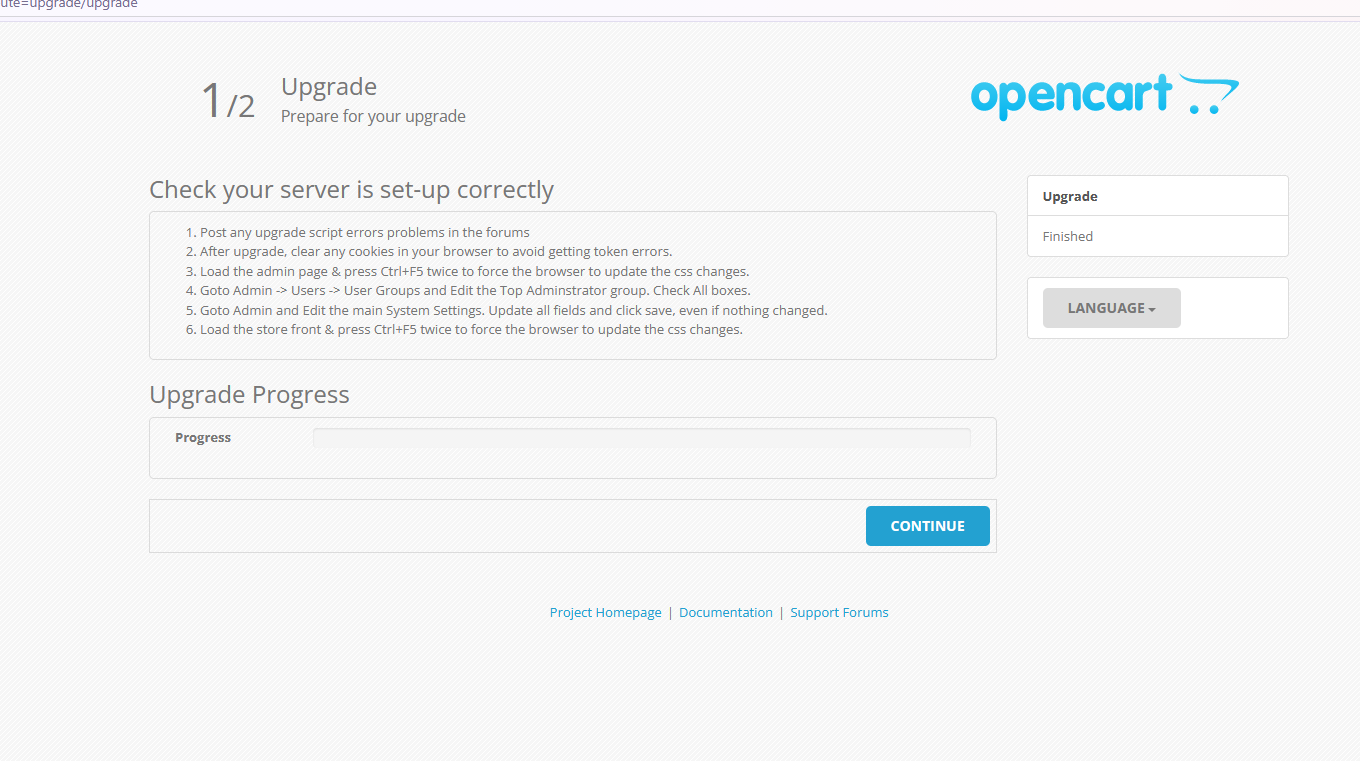
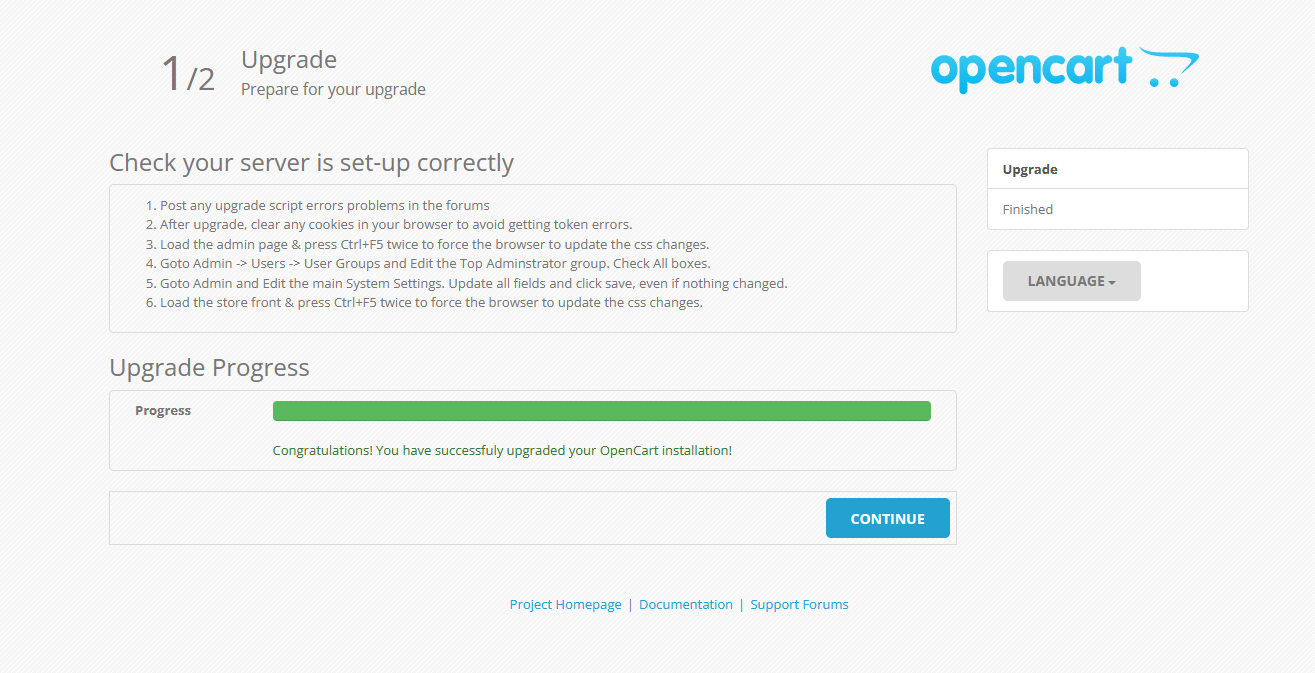
https://yourstore.com/installin your browser. - Click Upgrade. After a few seconds you should see the upgrade success page.
- Complete the process, then delete the
installfolder frompublic_html. Leaving it on the server is a security risk.
Step 5: Update the storage folder
- Find your current storage location in
config.php(look for theDIR_STORAGEconstant). - Rename the old storage folder (for example to
storage_old) instead of deleting it right away. - Copy the new
storagefolder from the archive (oc-3051/upload/system/storage) to the same location the old one used. - If you have files in the old
storage/uploadorstorage/downloadfolders that you still need, copy them into the new folder. - Once everything works, you can remove the old folder.
Step 6: Switch to PHP 8.x
- In your hosting panel, change the PHP version for your domain to PHP 8.x (for example in cPanel’s MultiPHP Manager).
- Open your storefront and admin to confirm everything loads without errors.
Step 7: Refresh modifications and cache
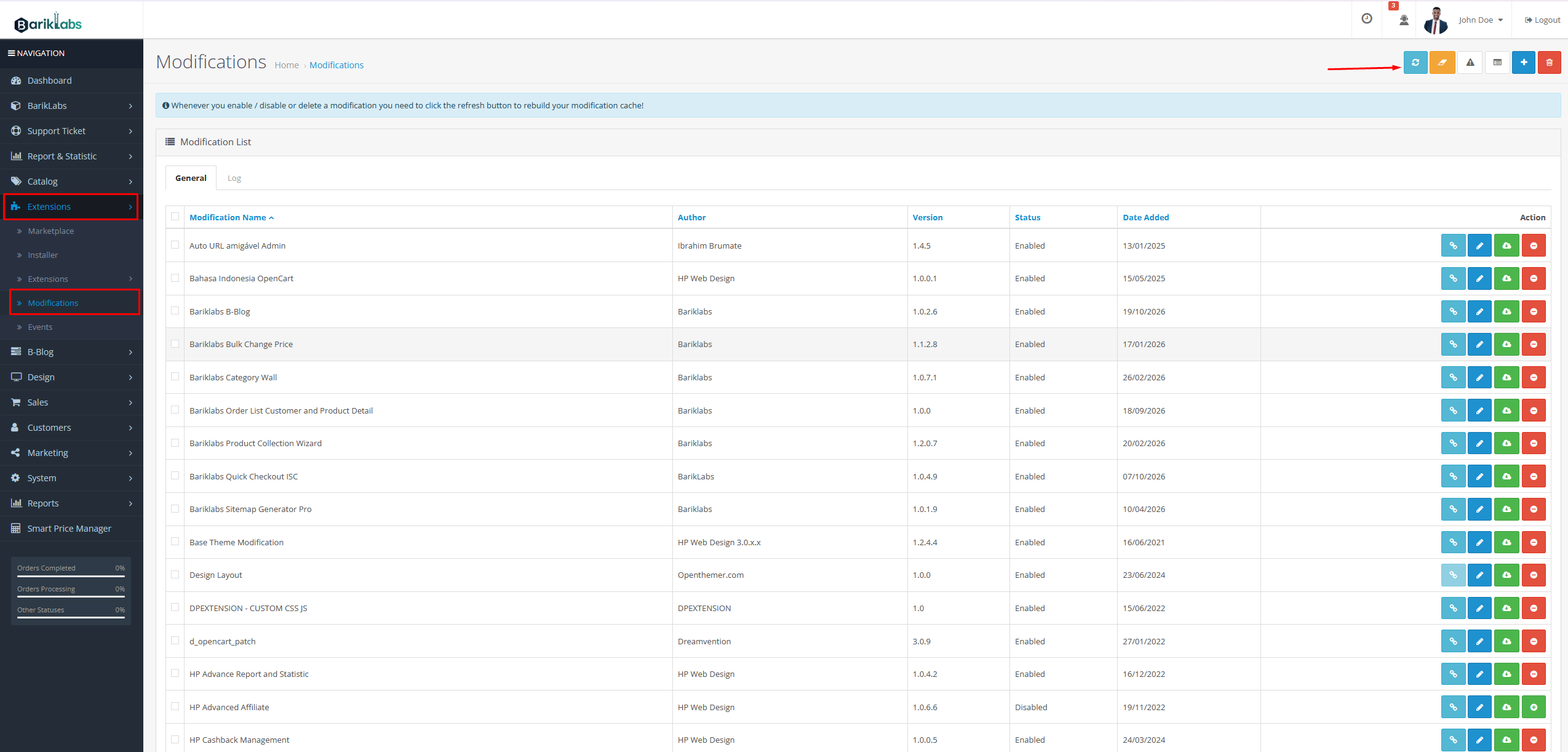
- Log in to the admin dashboard.
- Go to Extensions > Modifications and click the Refresh button.
- Clear the Twig cache from the dashboard if it is offered. Also clear your browser cache.
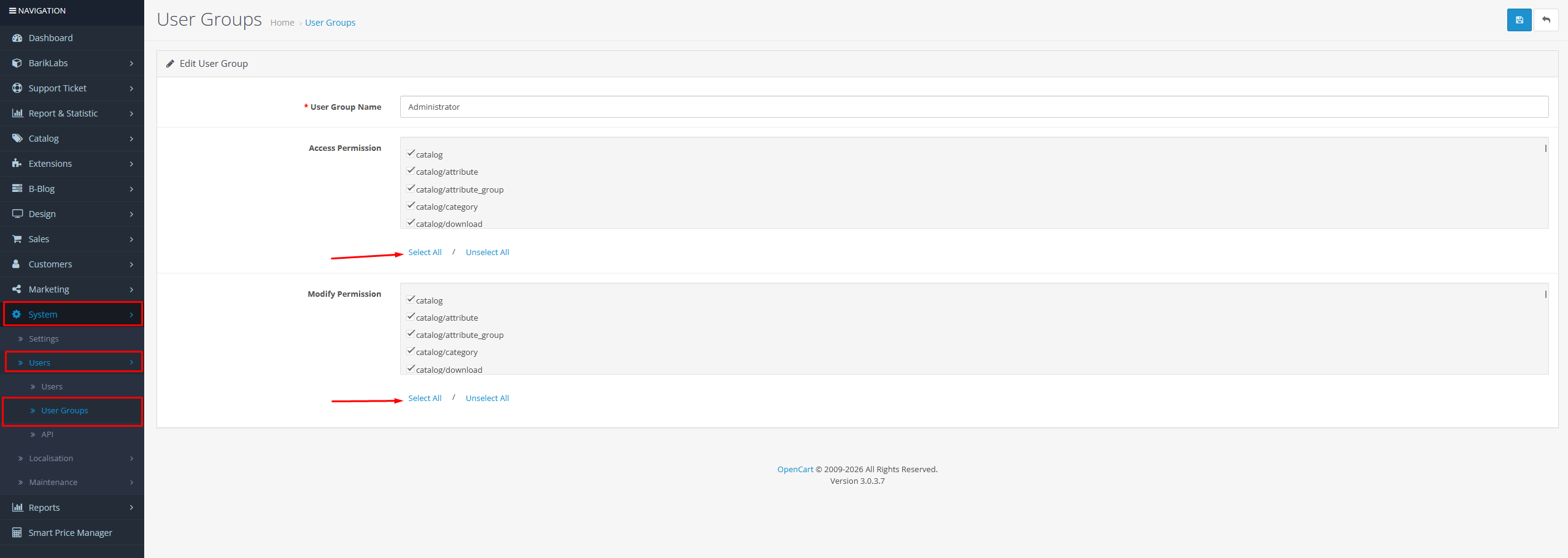
Step 8: Renew user group permissions
- Go to System > Users > User Groups and edit Administrator (the top group).
- Tick all boxes under both Access Permission and Modify Permission, then save. This makes sure new pages and features are accessible.
Step 9: Final check
- Turn off Maintenance Mode if you enabled it.
- Test key functions: browsing products, adding to cart, checkout, payment, and the admin order list.
- Check the error log under System > Maintenance > Error Logs for any warnings.
Summary
You have now upgraded your store to OpenCart 3.0.5.1, with better security and PHP 8.x compatibility. If something goes wrong, restore your backup and check that your theme and extensions are compatible with the new version.

Comments (0)
…